
ZIP
EasiestOpens directly in Windows 10 and 11 (Extract all). Best choice if you do not use 7-Zip or another archiver.
- Built-in extraction
- Same app as the 7Z build
Windows uninstaller · Portable · Free for personal use
This page explains what Geek Uninstaller does, how people use it in practice, how to fix common problems, and where to download the latest build. Written in English for readers and search engines (Google, Bing, Yandex).
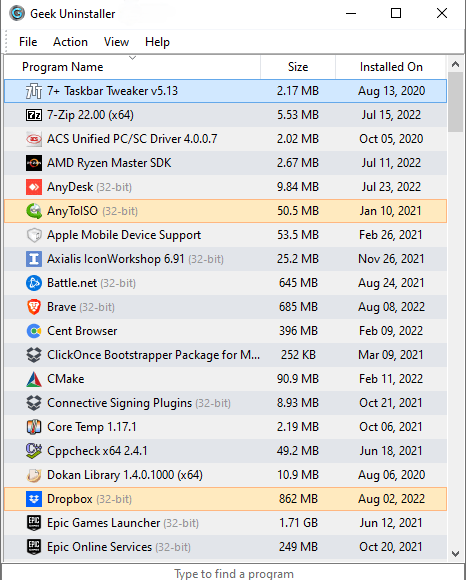
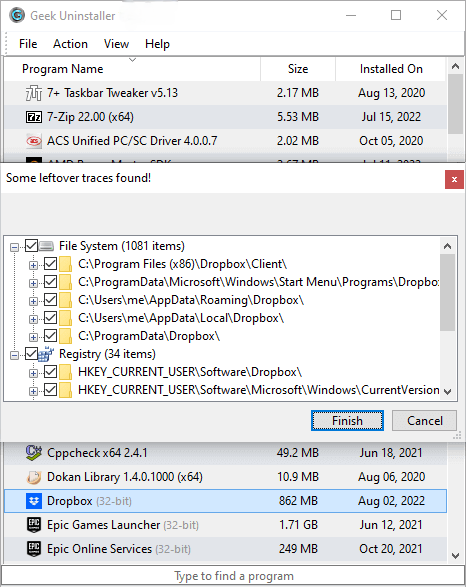
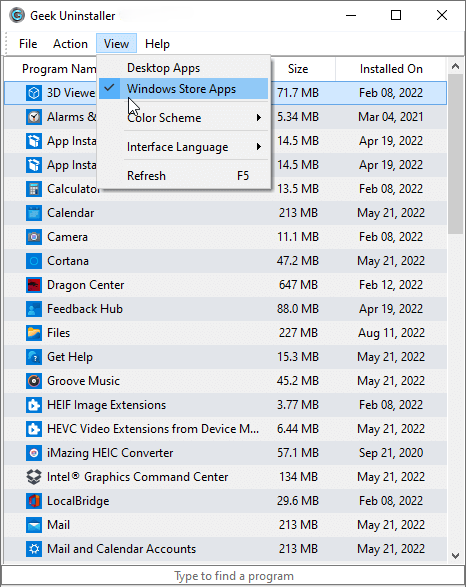
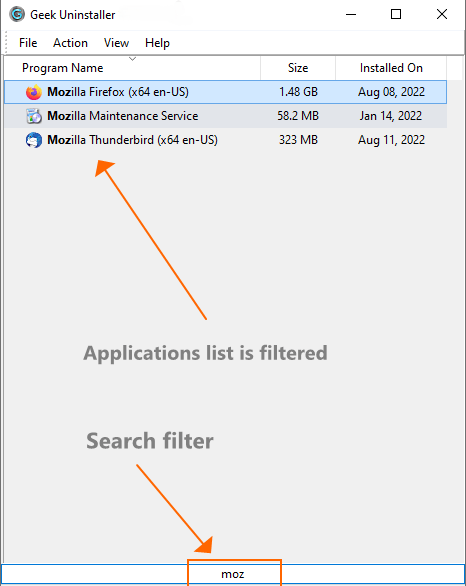
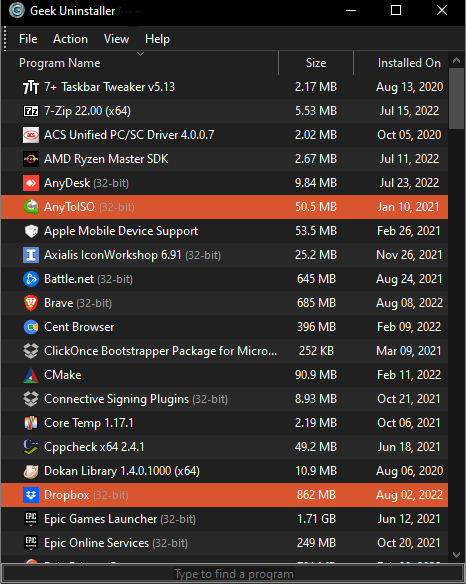
Program list: use arrows or dots to browse screenshots.
Get the app
Portable package for Windows: no setup wizard. Extract the archive and run Geek.exe. Administrator rights are required when you remove programs.
Geek.exe and choose Run as administrator when you want to uninstall software.License & use
The free build is intended for personal use. For commercial licensing and vendor support, see CrystalIDEA’s Uninstall Tool. Always read the license file included in the download.
Opens directly in Windows 10 and 11 (Extract all). Best choice if you do not use 7-Zip or another archiver.
Often a smaller download. Use 7-Zip or any app that supports the 7z format.
Official source: releases and announcements are published on geekuninstaller.com (Thomas Koen). This page offers a direct download for convenience; you can always use the author’s site if you prefer.
Geek Uninstaller is a lightweight utility for Windows that lists installed programs and helps you remove them thoroughly. Official releases are published on the author’s site, geekuninstaller.com. It is known for starting quickly, staying simple, and offering both standard removal with a leftovers scan and force removal when a program refuses to uninstall normally. The free edition is intended for personal use; a paid "Pro" line exists as Uninstall Tool from CrystalIDEA, based on the same codebase lineage. For step-by-step usage, see How it works and Download.
Power users, IT helpers, gamers who install often, and anyone tired of Control Panel leaving files, services, or registry junk behind.
Single small executable, portable folder layout, instant search, optional dark mode on recent Windows, and clarity: it does uninstalling well without bundling unrelated tools.
32- and 64-bit Windows 11, 10, 8.1, 8, and 7. Administrator rights are required for removals. On x64 Windows the app runs as a native 64-bit process. See the download section above for supported versions.
Below is a practical breakdown of capabilities for readers who want substance, not marketing fluff.

After the program's own uninstaller runs, Geek Uninstaller can scan for leftover files and registry entries. That extra pass is what keeps machines cleaner than using "Apps & Features" alone.

Broken installers, crashed uninstallers, or half-removed security suites are common pain points. Force removal is for situations where the normal path fails: use it carefully and only when you understand what you are removing.

The free tool ships as a compact package you can keep on a USB drive. The interface stays readable: recently installed or changed programs are highlighted (purple/orange tint in the product description), and you can type to filter the list instantly.

On Windows 8 and newer you can switch between desktop programs and Store apps (e.g. via the View menu or Ctrl+Tab as documented for the app). That single workflow helps when "Settings → Apps" does not surface what you need.
Use the download section on this page to get the ZIP or 7Z package.
Right-click the executable and choose "Run as administrator" when you plan to uninstall software. Elevation is required for complete removal on modern Windows.
Scroll or start typing: search is instant. Check whether you are viewing desktop software or Store apps if something is missing from the default list.
Let the program's own uninstaller finish. When prompted, run the leftovers scan and delete only entries you recognize as belonging to that app. When in doubt, research the path or registry key before deletion.
Some security suites and drivers schedule deletes after restart. If files stay locked, reboot once before attempting force removal.
The excerpts below illustrate how reviewers and users describe Geek Uninstaller in the wild.
"The performance of Geek Uninstaller is impressive. It uninstalls quickly and finds leftover files that anyone couldn't. Overall, the app is an impressive maintenance tool that delivers on both performance and features. Highly recommended."
"The bottom line is that Geek Uninstaller is a nice tool that can be quite useful. Inexperienced users shouldn't have any troubles while working with this program, thanks to its intuitive layout and overall simplicity."
"Geek Uninstaller is perfect for anyone who wants to make sure they leave nothing behind on their system when they uninstall a program."
"Geek Uninstaller is both portable and supports almost all the features anyone would expect from an uninstaller tool. Perfect for flash drives because it's a single file that takes up very little space."
"I've gotten so sick of using several different uninstallers… Geek Uninstaller is the perfect uninstaller for me. The UI is simple and perfect, and uninstalls are fast and accurate…"
"I've used other uninstallers before (i.e. Revo Uninstaller and others), and your product beats them hands-down… I've never had a problem, as I did with Revo, with programs not populating the uninstall list."
"I recently have used Revo Uninstaller and IObit Uninstaller… GeekUninstaller… is way better than the competition…. I have already started recommending your product to friends and family."
"I've tried a ton of uninstallers over the years. Geek Uninstaller is, hands down, the finest uninstaller I've ever seen. Simple, extremely effective, easy and gets the job done."
These patterns come up repeatedly when people discuss third-party uninstallers. They are educational suggestions, not a substitute for backups or vendor support.
Confirm you are not filtering the search box. Switch between desktop programs and Microsoft Store apps. If the software was portable or extracted-only, it may never have registered an uninstall entry: remove the folder manually after closing it.
Close background processes (tray icons, helper services). Temporarily disable self-defense only in legitimate security products and follow the vendor's uninstall tool if provided. Reboot, then retry before considering force removal.
Geek Uninstaller has historically appeared in release notes regarding false positives. Verify digital signatures when available, and report false positives to your AV vendor.
Prefer deleting items whose paths clearly belong to the removed product (company name, product folder under Program Files or AppData). Avoid blanket-cleaning shared runtimes (e.g. Visual C++ Redistributables) unless you know nothing else needs them.
Some apps are dependencies for others. Check whether the app is required by a suite (gaming clients, OEM tools). If Windows blocks removal, update Windows and retry, or use the app's own account/licensing logout flow first.
Readers often compare Geek Uninstaller to Revo Uninstaller, IObit Uninstaller, and the built-in Windows Settings panel. Experiences vary by machine and software mix: the quotes in User stories mention both successes and past issues with competing tools.
| Topic | Geek Uninstaller (free) | Typical "suite" uninstaller |
|---|---|---|
| Footprint | Very small portable executable; minimal UI chrome. | Often larger installers with extra modules (updators, optimizers). |
| Leftovers handling | Post-uninstall scan focused on the selected app. | May offer aggressive cleaning: higher risk if used carelessly. |
| Store apps | Dedicated view for Microsoft Store apps on supported Windows versions. | Varies; not all competitors expose Store apps in the same workflow. |
| Support | Community and documentation; Pro line sold separately. | May include vendor ticketing for paid tiers. |
The sections below are independent deep dives. They complement the overview above and are written for readers who want dense, practical material for search engines and long-form reading: not a repeat of the same bullet points.
Windows software is rarely a single folder. Installers scatter files across Program Files, ProgramData, AppData (Local, LocalLow, Roaming), the registry (HKLM and HKCU hives), scheduled tasks, services, firewall rules, and sometimes driver stores. When you click "Uninstall," the vendor's script removes only what it knows about: and that list is often incomplete after years of updates, side-by-side installs, or partial failures. A dedicated uninstall utility lists registered products first, then can help trace stragglers after the vendor uninstaller exits. That two-phase workflow is why many power users keep a lightweight tool on a USB stick even when they rarely need it.
Geek Uninstaller's approach fits this model: invoke the standard uninstall path, then inspect proposed leftovers with a skeptical eye. Blindly deleting every "leftover" line is how people break unrelated software; the value is in targeted cleanup tied to the app you just removed.
Classic Win32 programs register in Add/Remove Programs and usually expose an uninstall string under registry keys that tools can enumerate. Store-delivered apps use a different packaging model (AppX/MSIX family). The Windows UI merges some of this into Settings → Apps, but the list you see in a third-party uninstaller may differ depending on whether you are viewing "desktop" entries or Store entries. Switching views inside the tool matters when you are hunting something that does not appear in the default list: for example a sideloaded or OEM-bundled Store title.
When documentation refers to keyboard shortcuts or view toggles between lists, treat that as a navigation hint: your goal is to match the uninstaller's current mode to the kind of software you are removing.
Applications unpacked from a ZIP without an installer may never create an ARP entry. No uninstaller: including Geek Uninstaller: can remove what the OS never registered. In those cases, quit the app, delete its folder, and optionally search for stray configuration under %AppData% or %LocalAppData% using the product name. Always back up before deleting folders you are unsure about.
Steam, Epic, EA App, Battle.net, and similar clients often install shared dependencies: Visual C++ redistributables, .NET components, DirectX repair payloads, and anti-cheat services. Removing a game through the launcher is safer than ripping out redistributables you think are "duplicates." If you use a third-party uninstaller on a game, cross-check whether anti-cheat or DRM services are shared across multiple titles before you delete services or drivers.
Antivirus and EDR products hook deep into the kernel and file system. Vendors almost always ship a dedicated removal tool because the Control Panel entry alone is insufficient. Use the vendor's cleaner first; only then consider leftover scans. Force-removing a security product while real-time protection is half-functional can leave networking or boot configuration in a bad state: plan a maintenance window and have recovery media available.
Estimated size fields can be wrong for apps that share components, use junction points, or store user data outside the install directory. Treat displayed sizes as hints. If you are freeing space on a small SSD, prefer uninstalling large games and duplicated toolchains first; chasing kilobytes of registry noise rarely moves the needle compared to removing a single AAA title or an old Visual Studio workload.
If you experiment with unstable software, a virtual machine with snapshots remains the gold standard. Third-party uninstallers help on a live system, but they cannot replace the isolation of a throwaway VM when you are testing unknown binaries. On a VM, you can revert a snapshot faster than any deep clean: use both strategies together for risky evaluations.
Create a restore point or image backup before mass-removing leftovers on a production PC. Registry edits and file deletes are not always undoable. Cloud-synced folders add another wrinkle: deleting a local "leftover" path might sync deletion to other devices if that path lives inside OneDrive or Dropbox: verify paths carefully.
Each pattern is generic; adapt names and menus to your Windows build.
Refresh the program list, reboot, and check for duplicate entries with different version strings. Uninstall the older entry first if it is safe. If the vendor uses a bootstrapper, run the latest installer once in repair mode before removal.
Run the uninstall elevated, check Event Viewer for MSI errors, and look for pending reboot operations. Sometimes Windows Update has locked files; finish updates, reboot, then retry.
Remove the product using its own tool, then use Device Manager to uninstall hidden ghost adapters if the vendor documents that procedure. Avoid random registry pruning on network stacks.
Do not uninstall every Visual C++ redistributable to "save space." IDEs and games depend on specific years and architectures. Remove only what a dependency checker or the vendor explicitly marks as safe.
Close browsers and heavy apps first. Let the scan finish; disk thrashing on HDDs can look like a freeze. Consider upgrading to SSD if maintenance tools are routinely sluggish.
Do not bypass IT policy with third-party tools on a managed machine. Open a ticket; MDM and Group Policy may reinstall software you remove outside approved channels.
Some leftovers are per-user under another profile. Check whether the app wrote data only to the admin account you are using versus all users.
Enterprises often use vendor MSI ProductCodes, WMI, or PowerShell package providers. Consumer uninstallers complement those pipelines rather than replace them; know which layer you are automating.
Best free uninstaller for Windows 10 and Windows 11: Many users compare lightweight portable tools with larger suites. Prioritize a tool you understand: fast listing, clear leftovers proposals, and a conservative mindset when deleting traces.
Remove broken uninstall entry: If the registry entry exists but files are gone, you may need cleanup after backing up. Document what you change.
Cannot uninstall Microsoft Store app: Check dependencies, offline licenses, and whether the app is part of a bundle. Update Windows and retry before third-party force removal.
Completely remove antivirus: Use the vendor's dedicated uninstall utility first; reboot; then review stragglers. Skipping the vendor tool is a common source of network stack issues.
Free up space after uninstalling games: Remove the game through the launcher when possible; then clear download caches in the launcher settings. Leftover scans help with orphaned folders, not always with giant asset caches managed by the launcher.
Portable uninstaller USB: Keep the newest build on a stick with a text file noting the version and checksum policy for your environment.
Revo vs Geek vs IObit debates: Threads are anecdotal. Your driver versions, storage speed, and background apps change outcomes. Benchmark on your own machine with a reproducible test (timed cold start, list refresh, one known uninstall).
Dark mode for maintenance utilities: Eye comfort matters for late-night cleanup sessions; if a tool offers dark UI on modern Windows, it reduces glare when you are scanning long lists.
Many desktop programs bundle their own Java or target a specific major version. Remove only versions you can verify are unused; when uncertain, leave them or test in a VM.
Use conda/pip/venv tools for environment lifecycle. A general uninstaller handles the base installer entry, not every virtual environment folder unless you explicitly delete those trees.
Adobe's own cleaner and documented steps come first; cloud-synced user settings may reappear after removal if you sign in again on the same account.
Prefer Print Server properties or vendor utilities; shared drivers may affect multiple devices. Make note of office printers before removal.
Radio firmware and BT profiles can persist in user settings. Pairing again after clean removal sometimes resolves odd behavior faster than manual registry edits.
WSL lifecycle is best managed with wsl commands and distro-specific docs. Treat Linux filesystems separately from Windows ARP entries.
On HDDs, free-space consolidation can help; on SSDs, use vendor trim/health tools instead of old defrag habits.
On servers, change windows matter. Remove during a maintenance slot and verify firewall rules and service recovery options afterward.
Export screenshots of the product list before/after, retain vendor uninstall logs where applicable, and store checksums of installer files you used.
Family features may reinstall or block removals. Adjust family settings before fighting the OS with third-party tools.
"More aggressive = better." Aggressive cleaning raises the risk of collateral damage. The best outcome is a stable system, not the largest deletion count.
"One tool can fix all rot." If the OS is corrupted, reinstalling Windows or using in-place repair may be faster than chasing thousands of orphaned keys.
"Uninstalling frees all the space I expect." Shadow copies, hibernation, and page files dominate disk usage: unrelated to app removal.
"Store apps are always smaller." Some UWP packages cache large payloads; check Storage settings per app when space matters.
Disclaimer: This is an independent guide about Geek Uninstaller. Trademarks belong to their owners. Use at your own risk.
For trustworthy linking: cite the official publisher site for version and licensing facts; organic mentions from relevant technical sites are more valuable than mass reciprocal exchanges or paid placements that can look like link schemes.